Configure
Configure OpenFusion
Everything lives in one place: open the dashboard at http://localhost:9077 and use the Settings tab. Changes take effect immediately — the fusion tool never needs a restart.
What the fusion tool requires
OpenFusion refuses to run a fusion (with a clear error) until all three of these are true:
- At least 2 candidate models are configured,
- A judge model is picked, and
- Every referenced provider has a working API key (or is keyless).
When the last piece clicks into place, the ● Configured badge turns green. Use the Test button next to each key to validate it as you go.
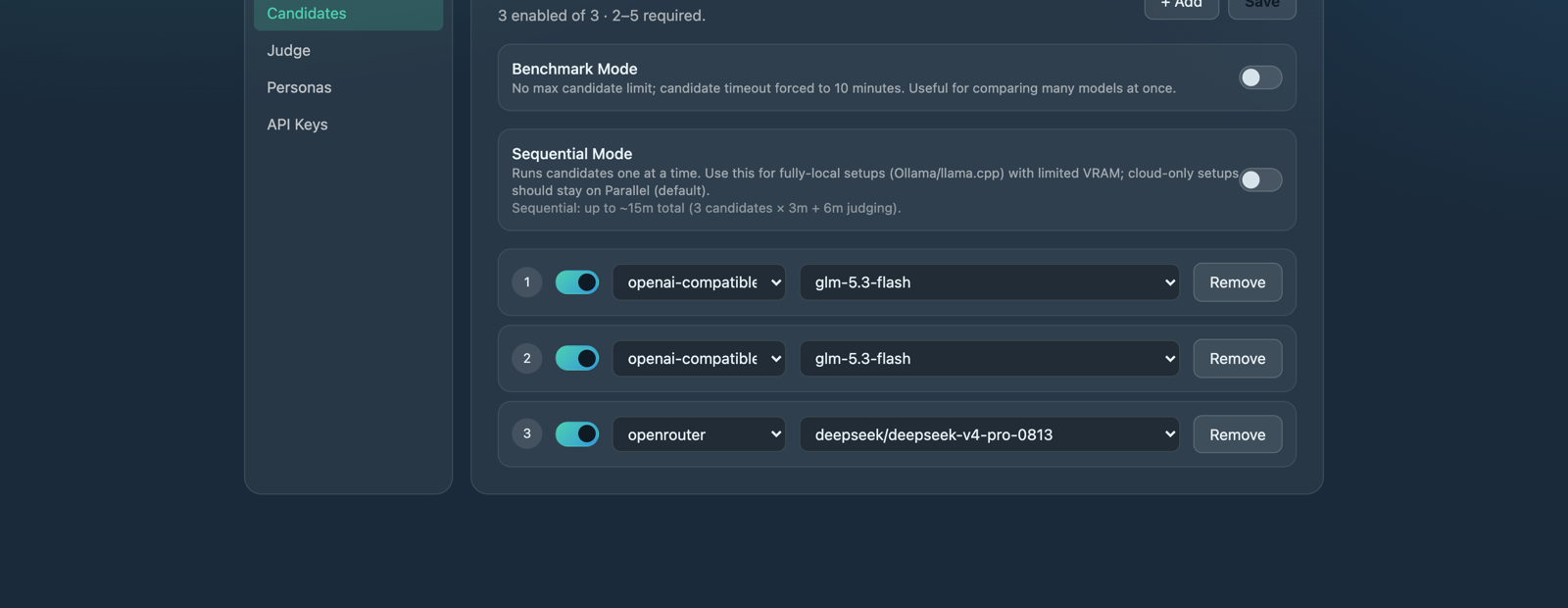
Settings → Candidates — each slot pairs a provider with a model; execution modes sit above the list.
Candidates — the panel
Candidates are the 2–5 models that answer your prompt in parallel. Mix them freely:
- Across providers — a cheap model from one provider next to a strong one from another.
- By budget — OpenRouter's finding: a panel of inexpensive models, fused, can match a single frontier model. Four cheap candidates + a solid judge is a great starting point.
- By character — mixing model families surfaces disagreements the judge can learn from.
Two to four is the sweet spot: each extra candidate adds latency and cost (every fusion makes N+2 calls: N candidates + two judge steps).
The judge
The judge reads every surviving candidate answer, analyzes consensus, contradictions and blind spots, then writes the final answer. One judge does both steps. Pick a model that's good at following instructions and writing clearly — it doesn't need to be the most expensive one you have.
Providers and API keys
Keys are stored encrypted (AES-256-GCM) in a secrets.enc file next to a machine-bound master.key. They're never displayed unmasked in the dashboard and never leave your disk.
Built-in providers:
- All major cloud providers via the model picker — bring your own key.
rapid-mlx— keyless, local inference on Apple Silicon through the rapid-MLX OpenAI-compatible server.ollama-cloud— Ollama's hosted endpoint, needs an account key.- Any OpenAI-compatible endpoint — custom providers with live model discovery.
Execution mode
In Settings, choose how candidates run:
- Parallel (default) — all candidates answer simultaneously. Fastest; what you want for cloud providers.
- Sequential — candidates answer one at a time, in the order you listed them. Slower by design, but it's the fix for a common local problem: when 3–5 local models try to load into VRAM at once, smaller GPUs run out of memory. Sequential loads one, gets its answer, frees it, then starts the next.
A time budget still applies in sequential mode — if the queue would overrun it, the run proceeds with the answers collected so far (the two-survivor minimum still holds).
Personas
Personas are pre-configured roles for the fusion call — different panels or judges for different jobs (e.g. a "code reviewer" persona, a "researcher" persona). Manage them in the Personas section of Settings and mark one active.
Two policies exist for MCP clients asking to use a non-active persona:
- Allow override (default) — the client's requested persona runs.
- Strict — the requested override is declined politely: the active persona runs, the client is warned, and you're asked once per dashboard session whether to relax the policy. Strict never blocks a fusion from running.
Fusions started from the dashboard's Playground are yours by definition — the active persona (or your explicit pick) always applies there.
Security posture, in short
- The dashboard binds to
127.0.0.1only — nothing outside your machine can reach it. - Keys are encrypted at rest; decryption happens in memory, per call.
- Config, keys, and the database all stay under
OPENFUSION_HOME(where it lives).
Next up
- Using the fusion tool — parameters and personas
- The dashboard — Playground and activity